

Uploading your Video Assignment for Submission
As of June 2026, we ask that you first upload your Video Assignment to YouTube as an Unlisted Video, before pasting the link into the answer box.
On Desktop
-
Open the YouTube website on your laptop or desktop and ensure you are signed in to your account. You will not be able to upload a video if you are not signed in.
-
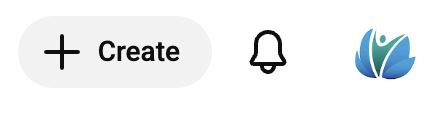
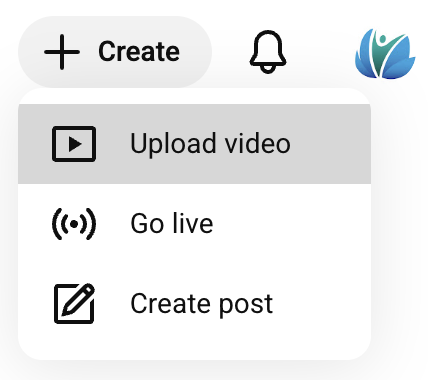
Tap the Create button in the top right of your screen, then select Upload Video.
-
Choose the correct video to upload from your files.
-
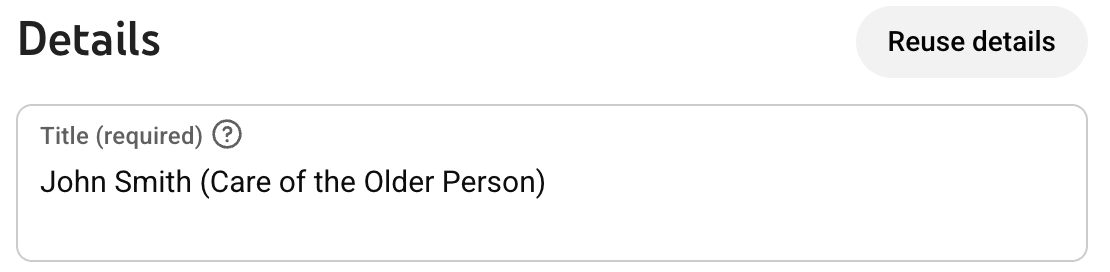
Enter a title for your video, for example: Full Name (Module Title) eg. John Smith (Care of the Older Person).
-
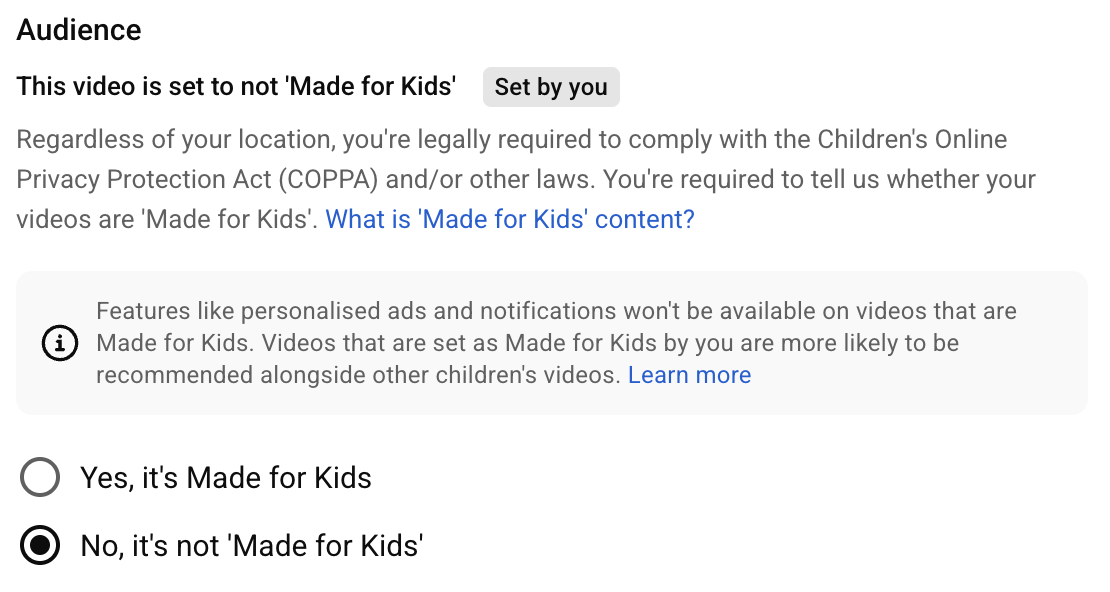
When asked if your video is for kids, select No, it's not made for kids.
-
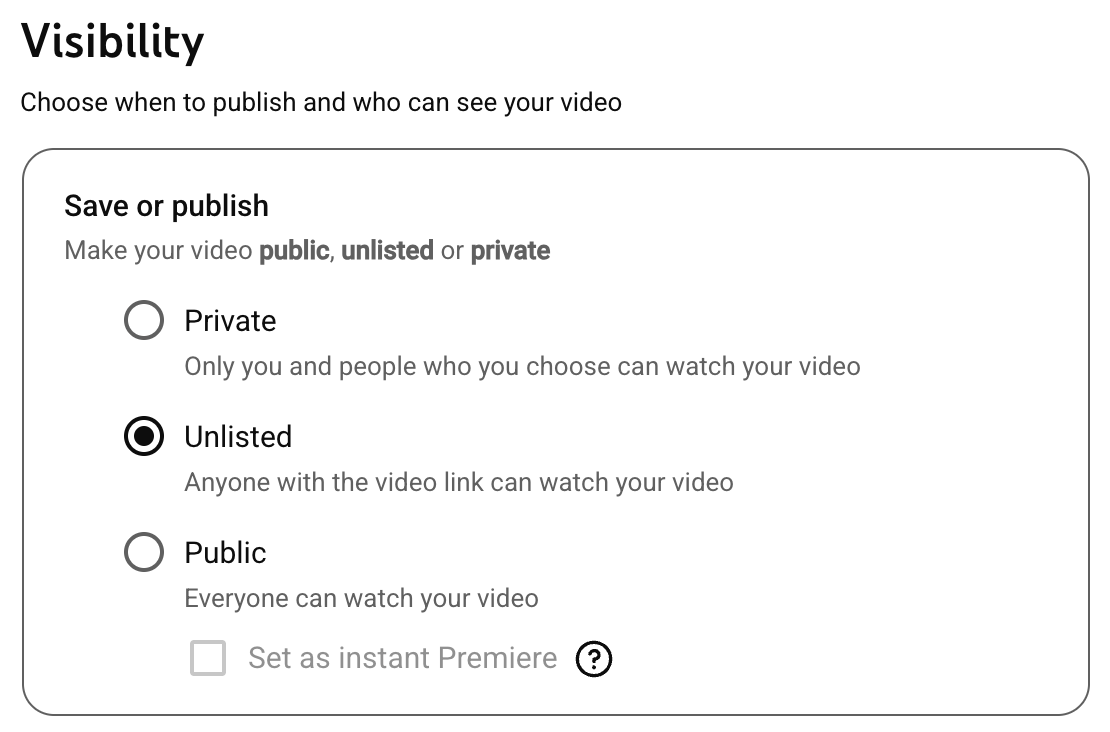
In Visibility settings, set your video to Unlisted. This means only people that have the link can view your video.
-
Once you have set your video to Unlisted and clicked No, it's not for made for kids, you can click Upload.
-
Once uploaded, please share the video using the arrow button next to Save.

-
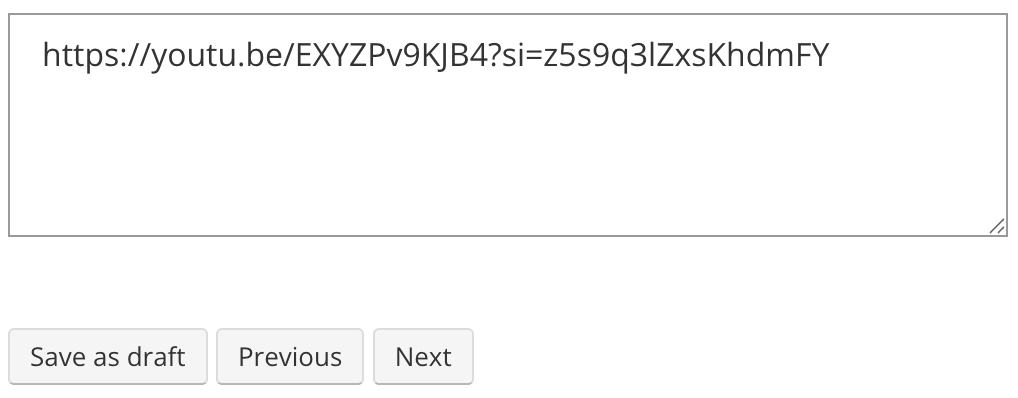
Select copy link and paste link into your assignment submission area.
On Mobile
-
Open the YouTube app on your phone and ensure you are signed in to your account. You will not be able to upload a video if you are not signed in.
-
Tap the + button in the bottom middle of your screen.

-
Choose the correct video to upload from your photo gallery.
-
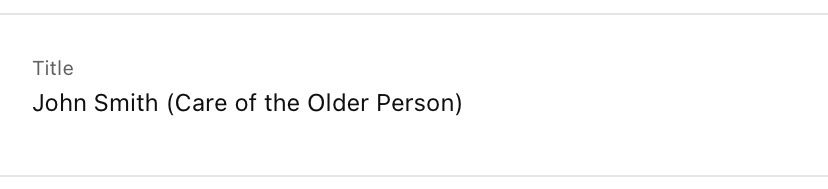
Enter a title for your video, for example: Full Name (Module Title) eg. John Smith (Care of the Older Person).
-
Click Next.
-
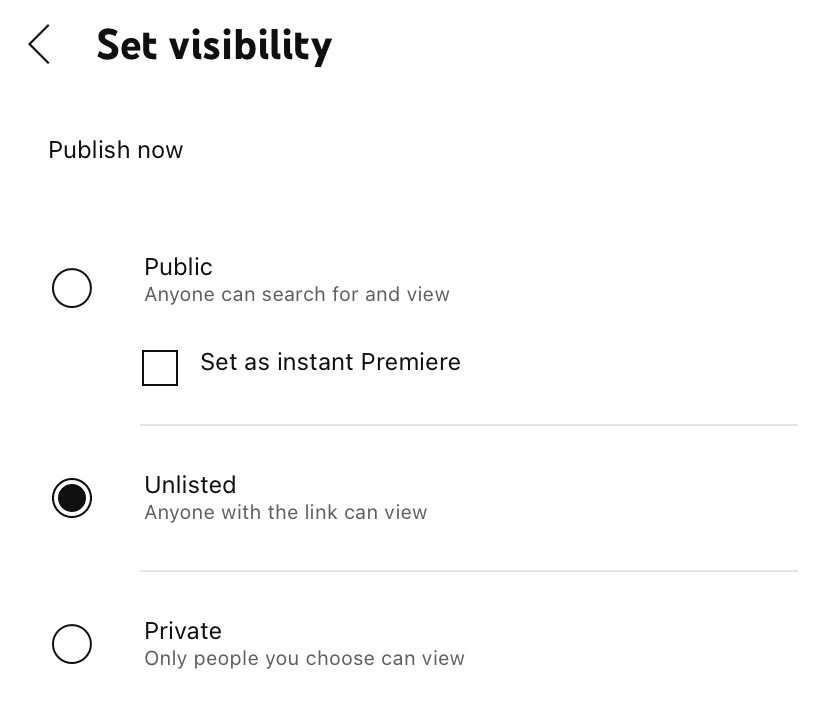
Under Visibility, set your video to Unlisted. This means only people that have the link can view your video.
-
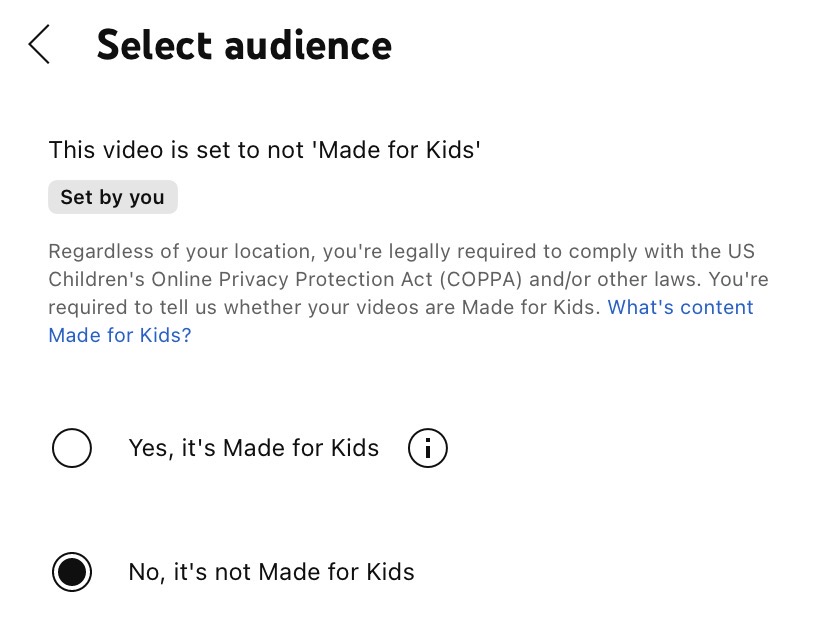
Under Select Audience, set your video to No, it's not made for kids.
-
Once you have set your video to Unlisted and clicked No, it's not for made for kids, you can click Upload.
-
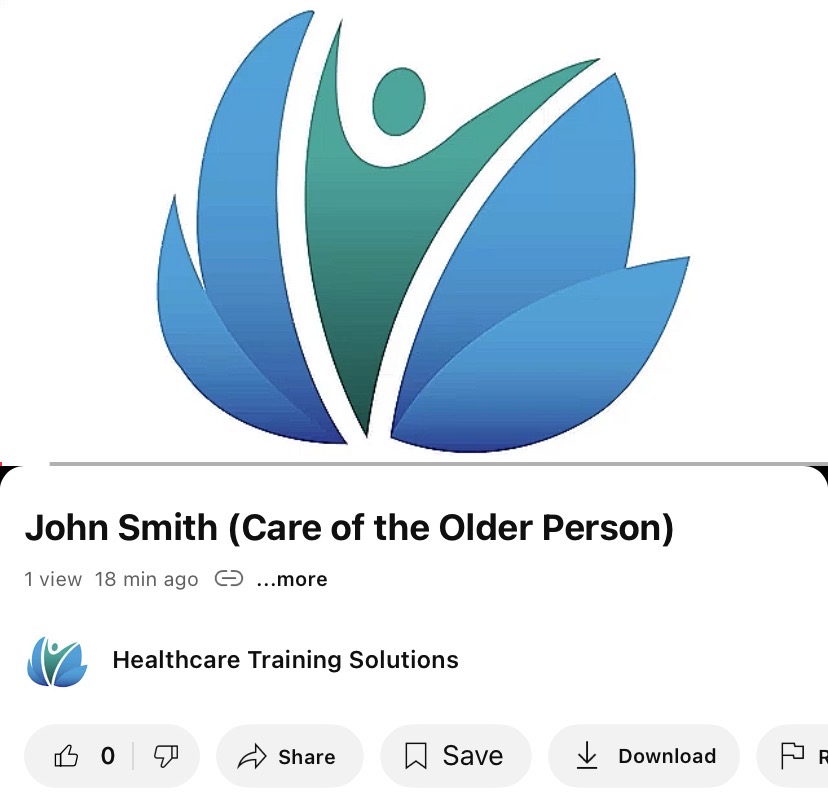
Once uploaded, please share the video using the arrow button next to Save.
-
Select share the copy link and paste link into your assignment submission area.
Important
-
Ensure the video has finished uploading before submitting the link.
-
Check that the video is set to Unlisted and not private.
-
Please test the link before submitting your assignment.
-
It is your responsibility to ensure your Tutor can view your video and that your video is named correctly.
-
Your Tutor will not contact you if your video is not viewable which may result in a grade of zero.